1. Download the app to your phone
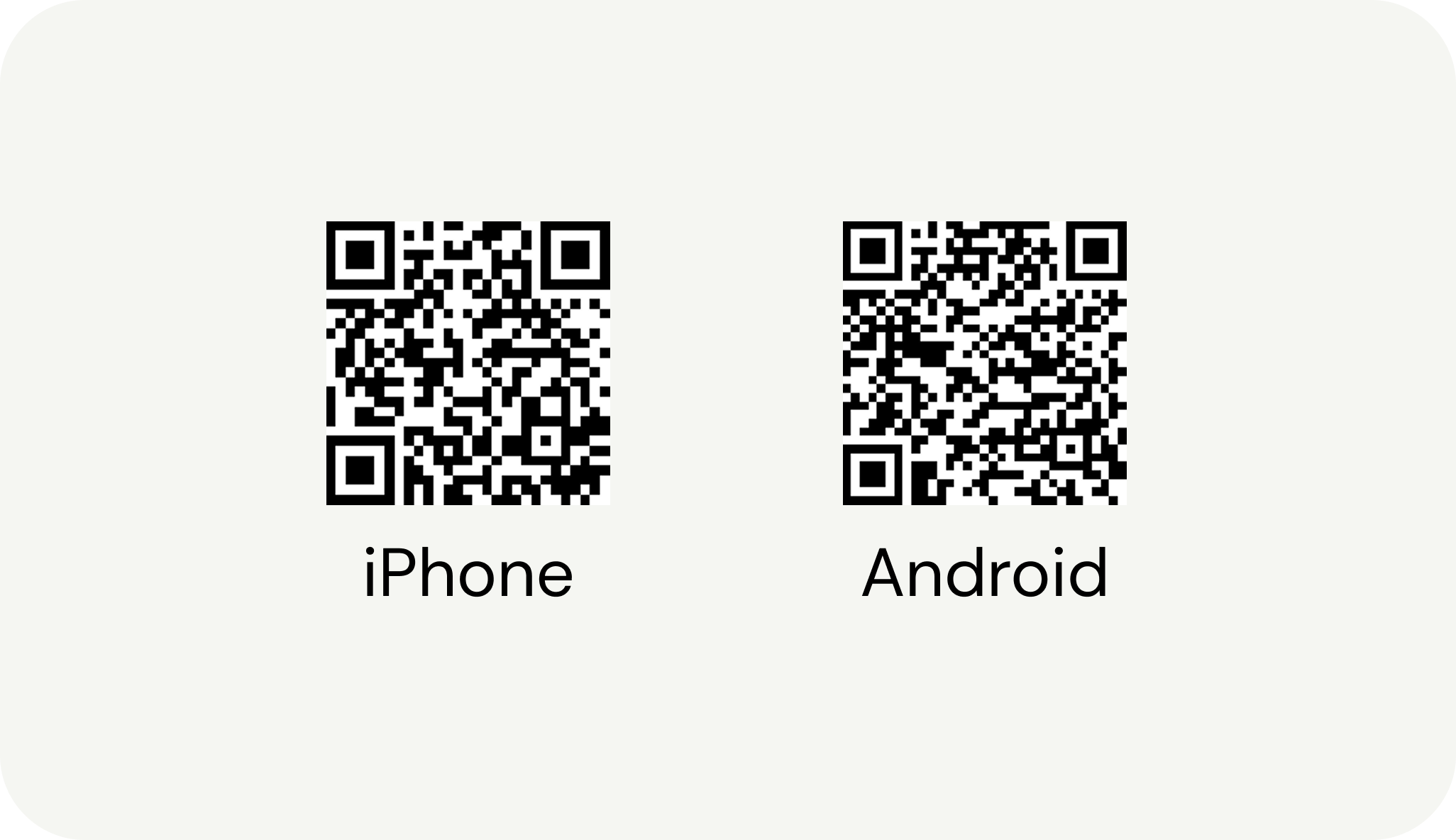
Scan the QR code below to download the app from App Store or Google Play.
2. Create a Monil user
How you log in to the Monil app for the first time depends on whether you purchased the collars yourself or not.
I purchased the collars myself
When you purchase collars through Monil, an organisation is automatically created in the app. Your collars are also added to this organisation so that they are ready to use.
To access the organisation and the collars, you must log in using the same email address that was used when making the purchase.
If you log in with a different email address, you will not see your collars in the app.
I did not purchase the collars myself
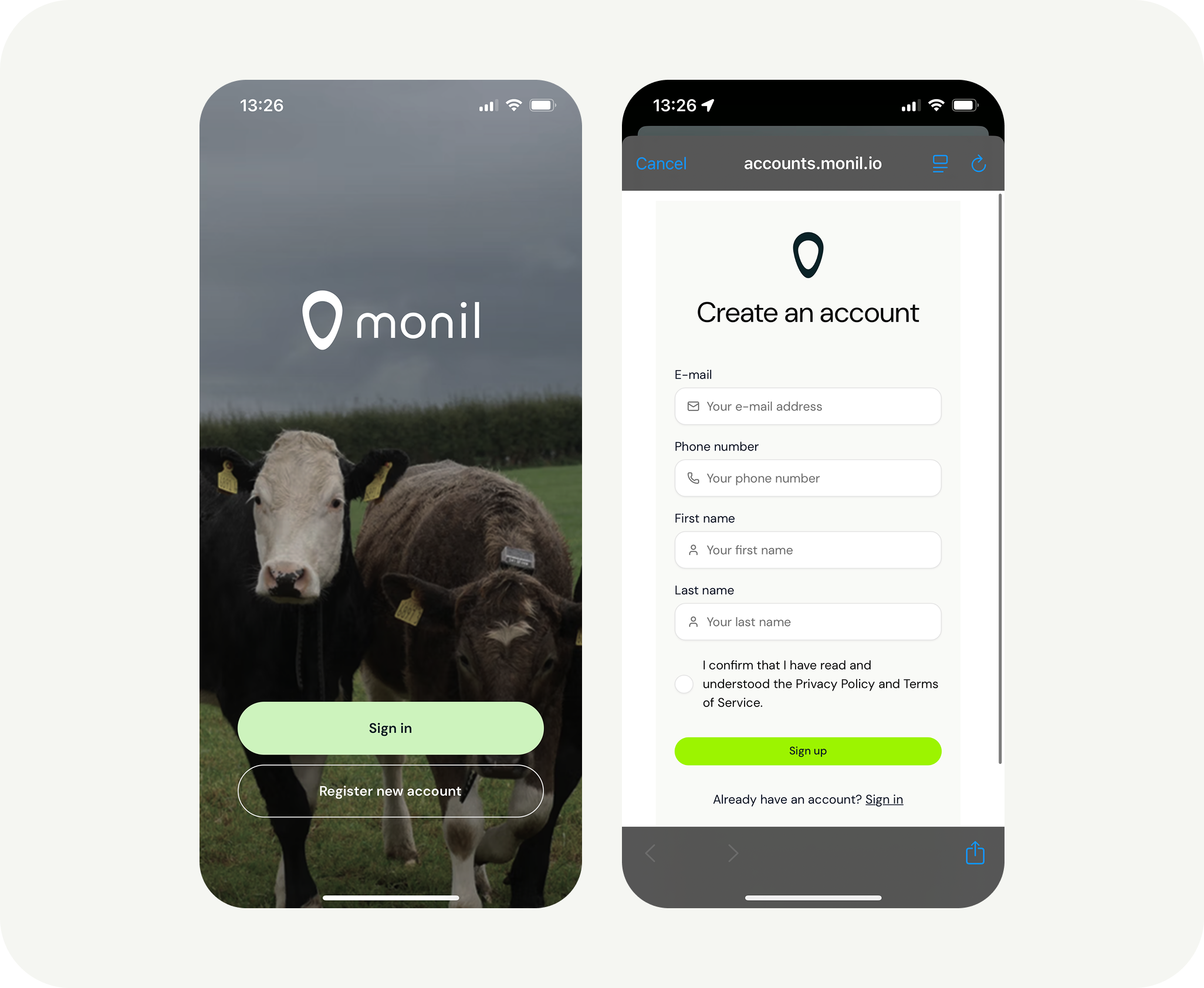
If you are not the person who completed the purchase, you will need to create a new user account in the app.
Once your user account has been created, you can choose to:
- Create a new organisation
- Join an existing organisation
Please note that a new organisation will not contain any collars. The collars are linked to the organisation that was created when the collars were purchased.
If you need access to existing collars, you must be invited to join the organisation that owns them.
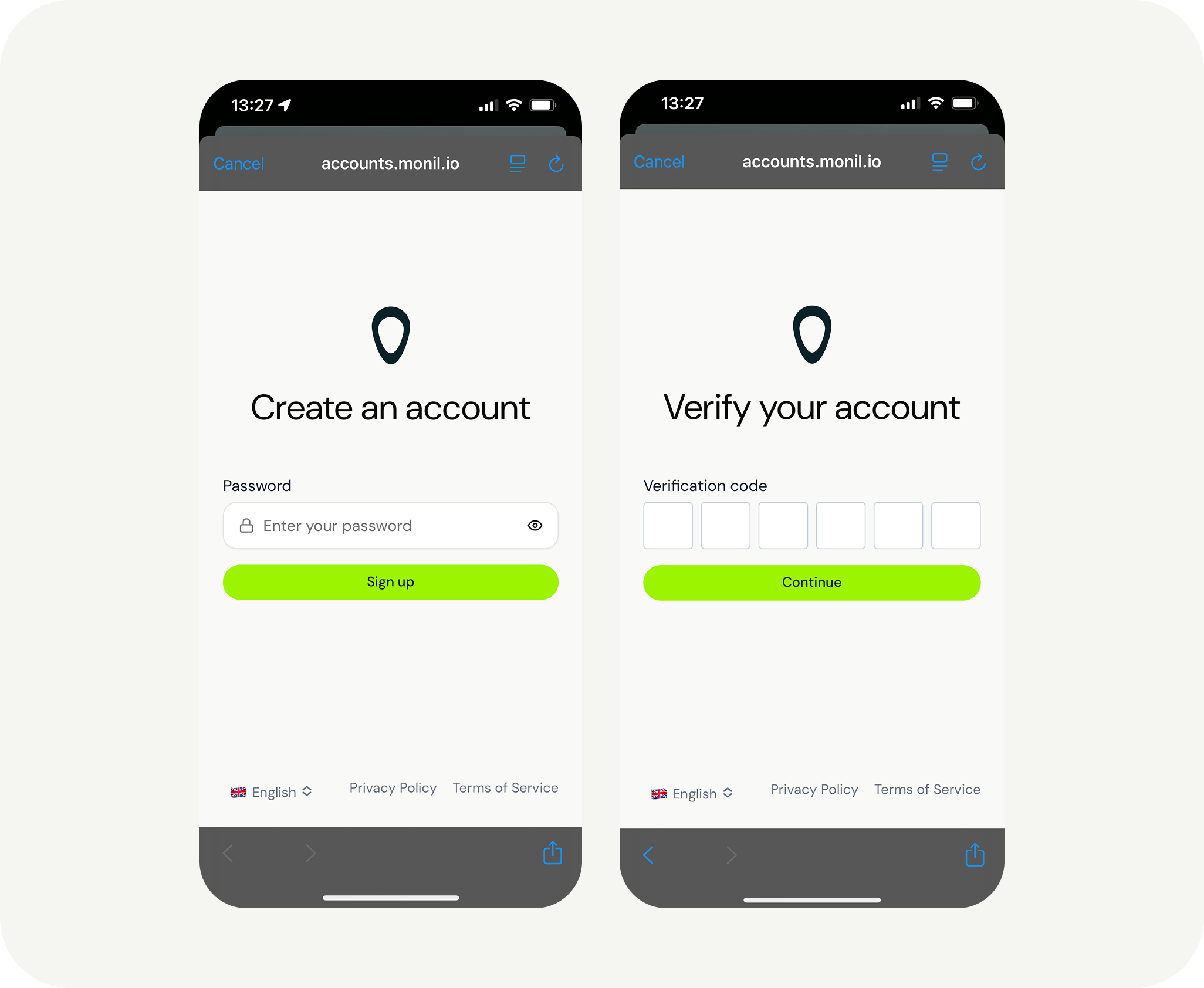
In the next step, you can create password or use passwordless log in. After that, you will receive a verification code at the email address you registered with. Enter this verification code in the final step.
3. Create an organization
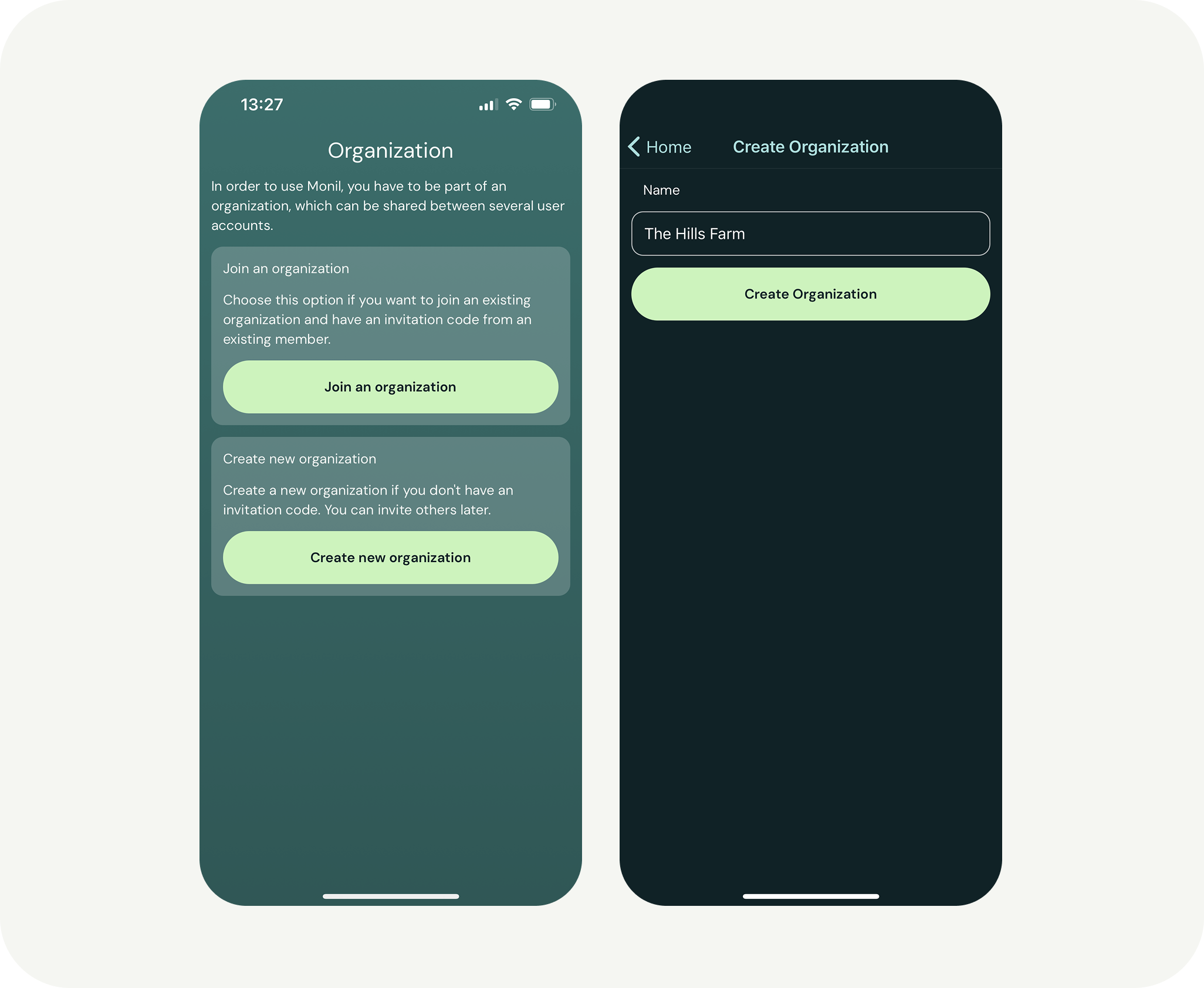
Next, you’ll have two options:
- Create your own organization
- Join an existing organization
If you create your own organization, you can set the name to be the same as your farm’s name. If you’re joining an organization that already exists, the administrator of that organization needs to send you an invitation code. This is done in the app under “More” and then “Members.”
You’re now ready to turn on the collars and add them to the app! 🎉